Per-student drill-down
Click a student to see their written plan and their reflection side by side with the AI Coach's grade, above a reverse-chronological transcript of every play, insight and coaching message.
For the instructor
Every plan and every reflection is scored against a published rubric. Module grades compute themselves from stated weights. You get a debrief deck built from your own class's answers — and the last word on every grade, with the reason on the record. This page sets out exactly what that means, including what vLeader does not do.
The gradebook
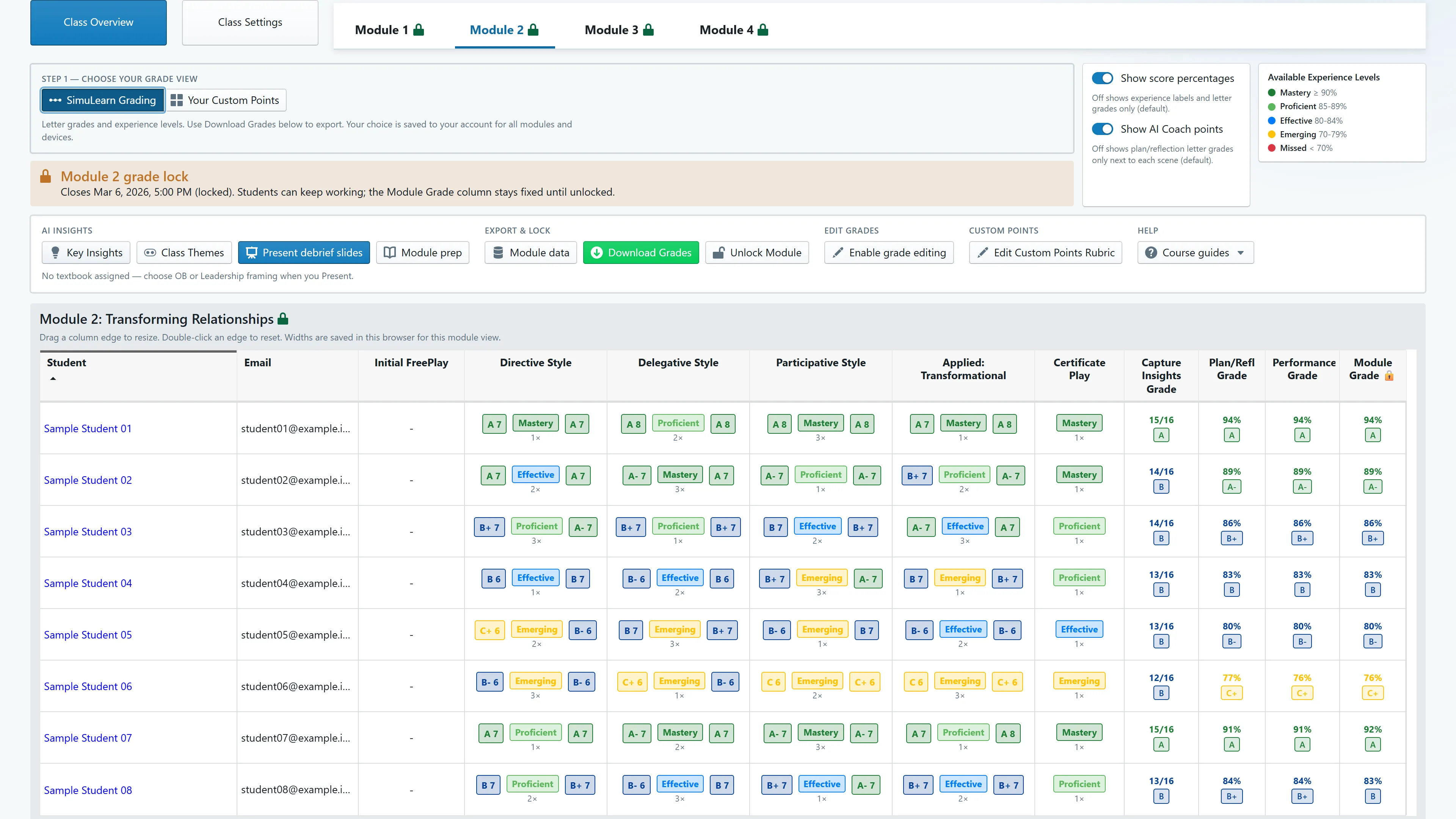
Right-hand end of the grid. The toolbar above it carries Key Insights, Class Themes, Present debrief slides, Module prep, Download Grades and Unlock Module. Sample class, synthetic students.
Class Overview is one grid: a row for each student, a column for each scene as the student sees it, then four grade columns — Capture Insights, Plan/Refl, Performance, and the Module Grade they compose into. We publish the weights, and the same arithmetic runs in the product and in this paragraph.
By default the grid shows letters and experience levels only; numeric scores and point values sit behind a toolbar toggle. The letter is the grade; the numbers are there when you want to check the working.
// module grade, as computed
Letter bands: A ≥ 90 · A− ≥ 87 · B+ ≥ 84 · B ≥ 81 · B− ≥ 78 · C+ ≥ 75 · C ≥ 72 · C− ≥ 65 · D+ ≥ 50
Click a student to see their written plan and their reflection side by side with the AI Coach's grade, above a reverse-chronological transcript of every play, insight and coaching message.
A class-level chart comparing initial freeplay against applied and certificate play across objective categories — one tab per module. Growth is charted for the class as a whole; there is no per-student version.
The gradebook refreshes itself while the tab is open and pauses when it is hidden. No reload button.
If the score overview cannot be built, you get an explicit error and grade downloads are disabled. The gradebook never comes back quietly incomplete.
The rubric
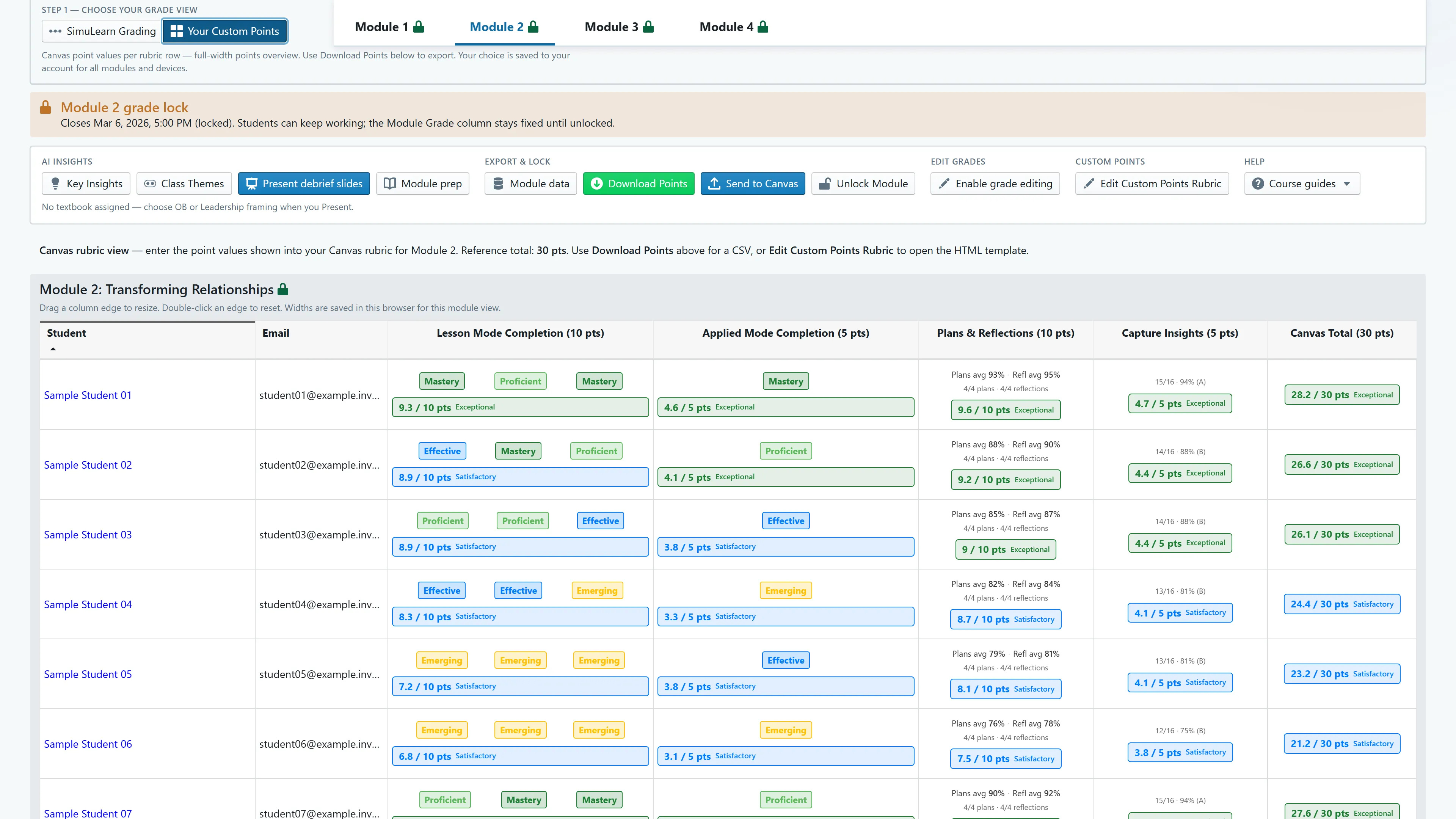
Switch the grade view to Your Custom Points and the same results re-express as point values against a rubric total you set — 30 points here — ready to type into a Canvas rubric or export as CSV.
The AI Coach scores each plan and each reflection against a fixed rubric — named criteria, fixed point values, published. The same rubric definition generates the model's grading instructions, the guidance the student reads before writing, the override dialog you grade in, and the rubric document you can hand to a committee. One source; four views of it.
You see the letter, the numeric score and the per-question breakdown. Students see the letter and the criteria, while the per-question points stay with you. And the grading itself is the one generative part of the product — a rubric-driven model, disclosed as such, the same way we disclose it to students.
When the model fails to grade a submission, the failure mode is a support ticket rather than a silent zero. The student sees a real ticket number and a note that you will still see their submission, and our staff grade it manually.
// module 1 plan rubric — as published
| Objectives placed | 2 |
| All phases filled | 1 |
| Real after-stem text | 2 |
| Intelligent reasons | 3 |
| Own words | 1 |
| Concise & on-task | 1 |
| Total | 10 |
Your override
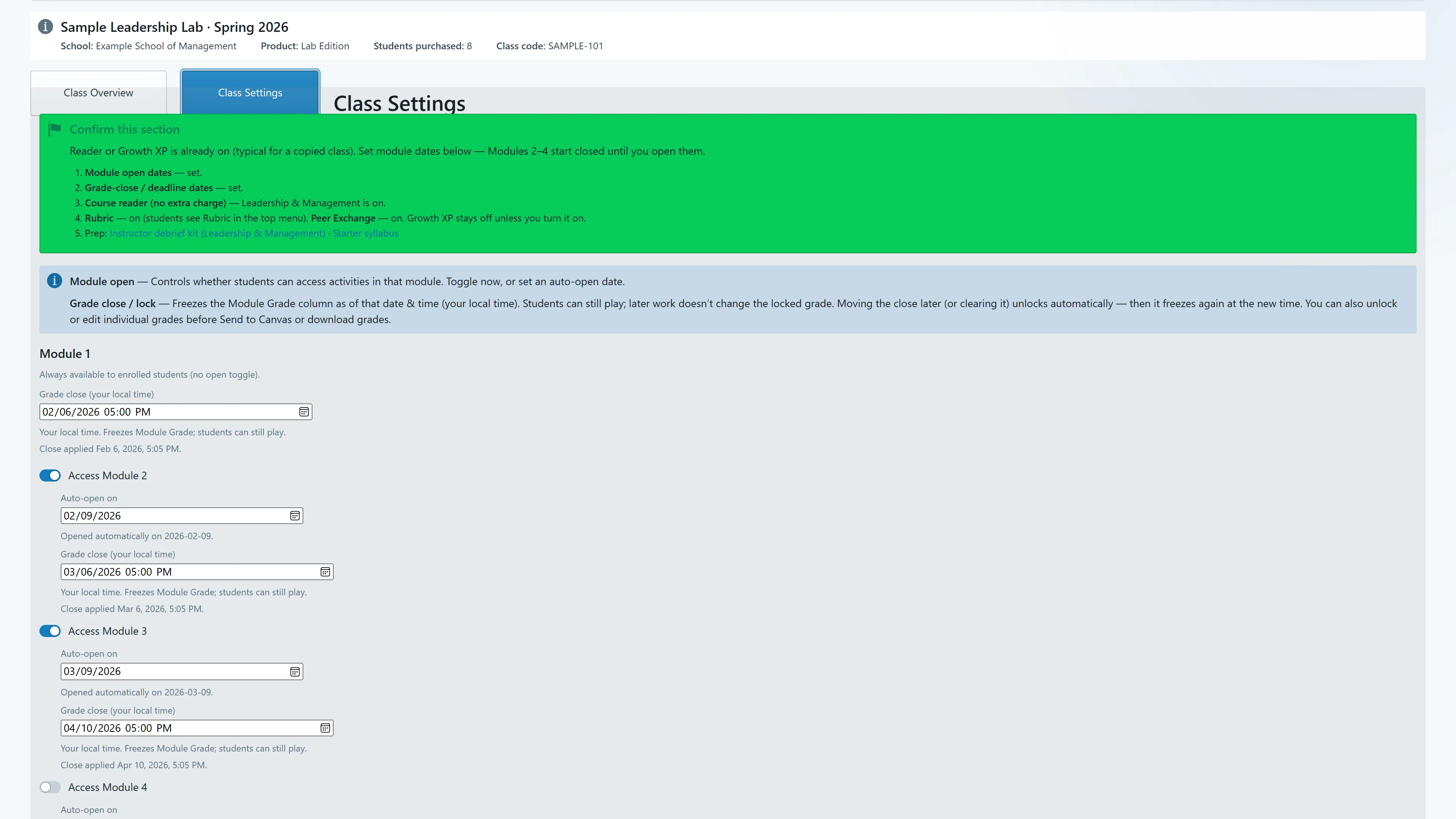
Class Settings. You control when each module opens and when its grades freeze; students can keep playing after a close, and the locked Module Grade stops moving. Moving the close later unlocks it again automatically.
Enable editing, click any grade cell, enter a new value — and a reason. The reason is enforced by the server, so it holds even where the form is bypassed. The computed grade stays underneath; your override wins on display, in the grades CSV, and in a Canvas push, and every change is recorded alongside the value it replaced.
When you are finished, lock the module. The grades freeze as a snapshot and stop moving even though students can keep playing for their own practice. Unlock and relock whenever you need to.
Set a per-module close date-time in Class Settings and grades freeze as of that deadline — applied when the class is next opened after your close time. Extend the date and the freeze lifts.
This is the answer to the committee question every AI-assisted assessment gets: the model proposes, the instructor disposes, and a grade appeal finds a reason on file — not a shrug.
The debrief
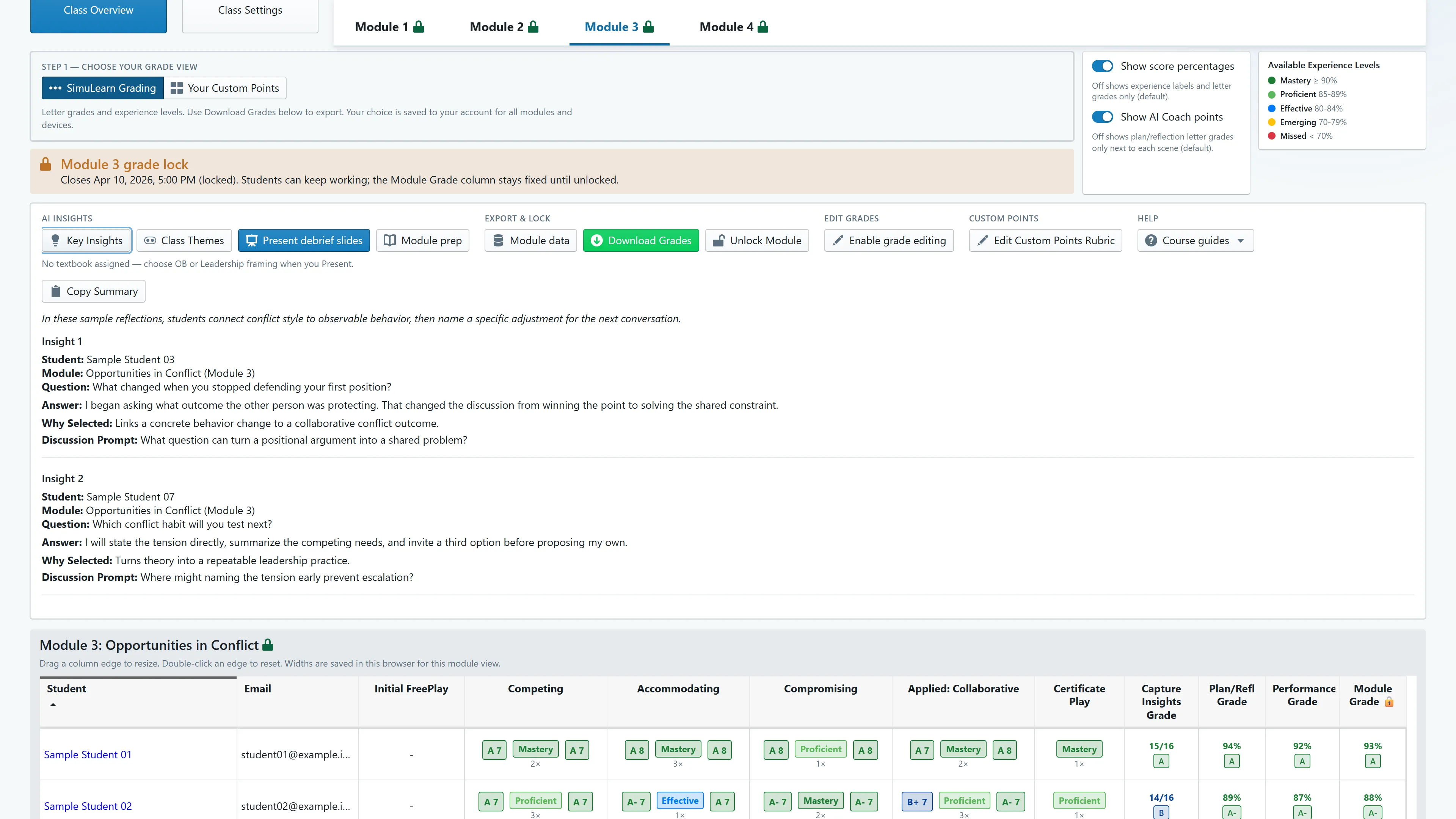
Key Insights pulls specific student answers out of the class's reflections and pairs each with a reason it was chosen and a question to ask the room. Insights are model-generated; the slides they assemble into are built by fixed rules. This is part of Module Coaching, a per-class setting we switch on — worth confirming it is on for your section.
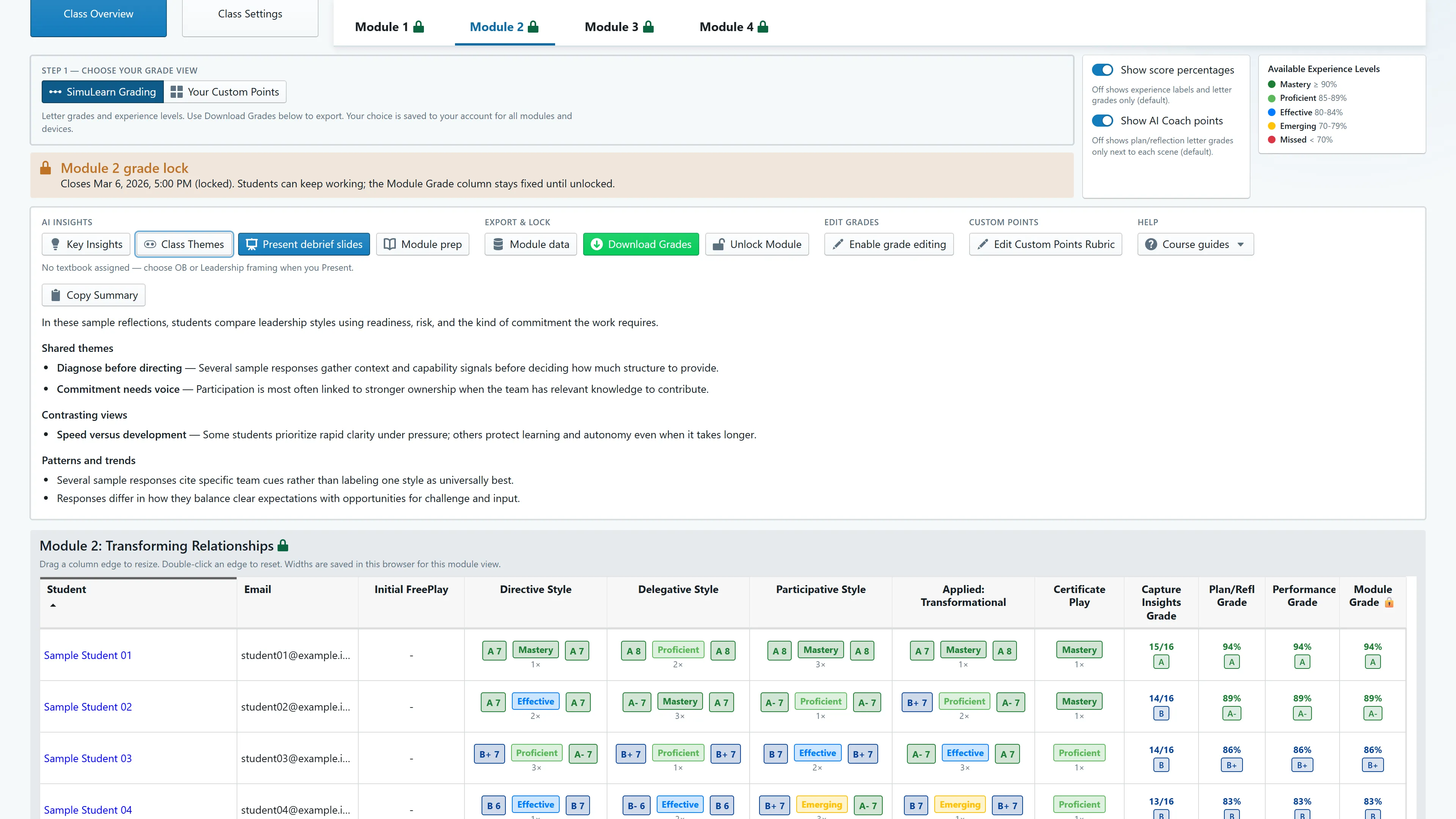
Class Themes is the same reading one level up: where the cohort converged, where it split, and the patterns worth putting on the board — named as themes rather than as students. Present debrief slides turns both into a deck framed for Organizational Behavior or Leadership & Management.
One button on the module tab builds a presentable, fullscreen debrief deck from your class's own reflections: the themes they converged on, where they split, the strongest answers quoted without names, and a theory anchor plus three facilitation questions on every content slide. The framing switches between Organizational Behavior and Leadership & Management to match the textbook your class is assigned.
Be precise about which half is which. The insights and themes are generated by a model reading your class's reflections — cached, and regenerated when the reflections change — while the slides themselves are assembled by fixed rules. Student names are stripped before anything reaches the screen.
Alongside it sits a module prep briefing written for instructors only: how students usually feel in that scenario, what they misunderstand, what unlocks their buy-in — written so you can run the debrief even if you have never played the scenario yourself. The briefing and the printed debrief guides in the instructor kit work in every class; the AI insight panels and the generated deck run in classes with Module Coaching enabled — a per-class setting we switch on, so confirm it is on for your section when you evaluate.
Why the debrief is the part we measure
The debrief is the part with evidence behind it: across a summer term of graded reflections, 62% scored higher after the debrief than before it.
The course scaffolding
The instructor kit opens from a menu inside the gradebook, in an Organizational Behavior and a Leadership & Management edition — plus a faculty guide to teaching with a simulation-based leadership lab. These are written documents rather than fill-in templates; the Module 1 debrief guide alone runs about 5,300 words.
With paste-ready assessment language for your course description.
One per module, matched to your textbook variant.
A printable facilitation guide per module.
The classroom-ready version of each debrief.
Getting grades out
Every sub-score, the composite percentage and the letter, per student — with your locks and overrides applied. This is the grade of record, in a file your LMS imports.
Relabel rubric rows and set your own point totals per class, and switch the whole grid between our letter grading and your custom points. The choice follows your account across modules and devices.
Where your institution runs Canvas and we have enabled the connection for your class, locked module grades push directly, matched by student email. Before each send, the product warns you outright that it replaces the Canvas-side scores for that module. We would rather say that in the product than have you discover it.
Stated plainly
Every number on the rest of this site carries its denominator and its limits. Features get the same treatment here.
A 30-minute walkthrough of the gradebook, the override flow and a generated debrief deck — with the insight tooling switched on so you see what your section would see.
Request a faculty demo